
USB creation
 Ventoy
Keep several Linux downloads on one USB stick with Ventoy.
What is Ventoy?
Ventoy lets you keep several Linux ISO files on one USB stick. When you start from the USB, a menu lets you choose which one to try.
You set up Ventoy on the stick once, then copy ISO files onto it like normal files. It’s handy if you want to try a few distros.
Set it up using: Windows or Linux.
Download Ventoy (opens in a new tab)
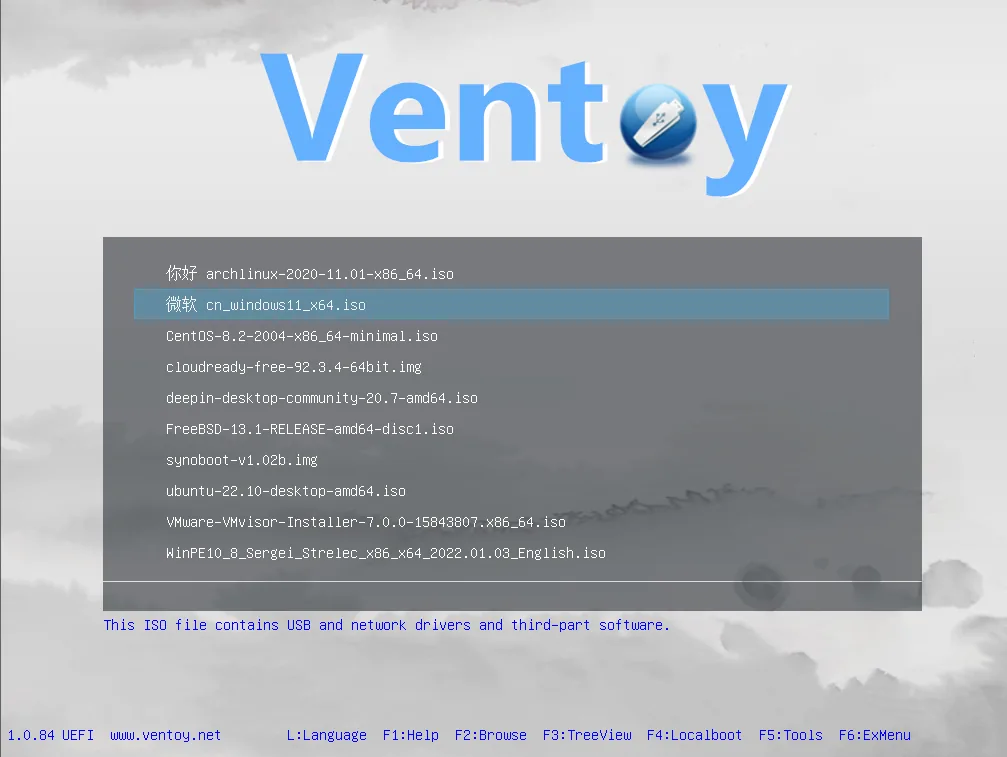
Source: Ventoy (opens in a new tab)
Prepare the USB
- Install Ventoy on the stick
Follow the official setup guide for Windows or Linux. Select your USB and install Ventoy onto it.
- Copy your Linux downloads
Download ISO files from the distros' official websites. Copy them onto the large Ventoy partition on your USB without extracting them.
- Choose a distro
Wait for copying to finish, safely eject the USB, and start your computer from it. Choose an ISO from the Ventoy menu.
Ventoy setup guide (opens in a new tab)
If it doesn’t start
Some images or computers need extra steps. If Secure Boot gets in the way, check Ventoy’s Secure Boot guide (opens in a new tab). You can also try writing the distro directly with its recommended USB tool.
See Trying Linux for opening your computer’s boot menu.