
Software
 AppImage
Download and run Linux apps as a single file, and fix common FUSE errors.
What is an AppImage?
An AppImage is an app packaged as a single file ending in .AppImage. Download it, allow it to run, and open it. There’s usually no installer.
It includes much of what the app needs, but some AppImages still need extra libraries from your distro. These are small pieces of software that help the app run.
Run an AppImage
Download it from the app’s official website. Choose the version for your computer: x86_64 is common for Intel and AMD PCs; ARM64 is for ARM computers.
- Open the file properties
Right-click the AppImage in your file manager and choose Properties.
- Allow it to run
Find Permissions and enable the option to run the file as a program. The wording varies between desktops.
- Open the app
Close Properties and double-click the AppImage.
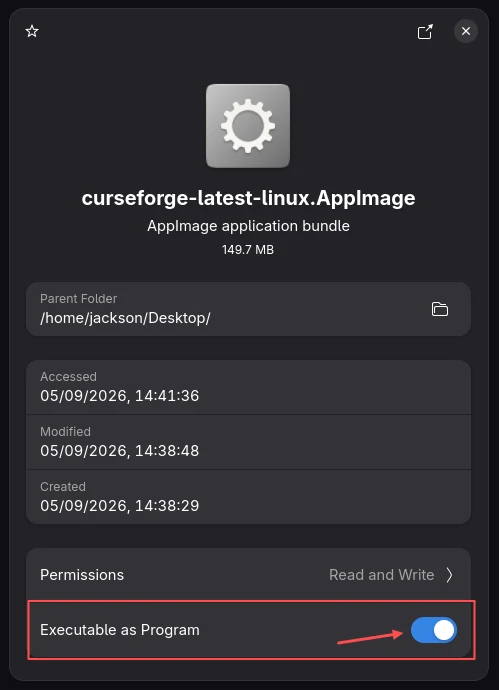
Or open a terminal in the folder containing the file. Replace MyApp.AppImage with its actual name:
chmod +x "MyApp.AppImage"
./"MyApp.AppImage"If it asks for FUSE
Some AppImages need FUSE 2, which helps Linux open the app file. An error mentioning libfuse.so.2 usually means its library is missing.
Try opening the app first. You may already have everything installed. If you get a FUSE error, choose your distro below and use the command for your version.
 Fedora
Fedora Workstation: fuse and fuse-libs
sudo dnf install fuse fuse-libs Ubuntu
Ubuntu 24.04 and newer: libfuse2t64
sudo apt install libfuse2t64Ubuntu 22.04: libfuse2
sudo apt install libfuse2 Linux Mint
Linux Mint 22: libfuse2t64
sudo apt install libfuse2t64Linux Mint 21: libfuse2
sudo apt install libfuse2 Arch Linux
fuse2
sudo pacman -Syu fuse2 openSUSE Leap
fuse and libfuse2
sudo zypper install fuse libfuse2 openSUSE Tumbleweed
fuse and libfuse2
sudo zypper install fuse libfuse2 Debian
Debian 13: libfuse2t64
sudo apt install libfuse2t64Debian 12: libfuse2
sudo apt install libfuse2 Bazzite
Bazzite recommends Gear Lever for managing AppImages. Install it through Bazaar and follow the Bazzite AppImage guide (opens in a new tab).
 Pop!_OS
Pop!_OS 24.04: libfuse2t64
sudo apt install libfuse2t64Pop!_OS 22.04: libfuse2
sudo apt install libfuse2 CachyOS
fuse2
sudo pacman -Syu fuse2Keep FUSE 3 installed. FUSE 2 libraries can sit alongside it. On Ubuntu and its derivatives, use the library package shown above, rather than replacing FUSE 3 with the package called fuse.
AppImage’s FUSE guide (opens in a new tab)
Update an AppImage
Some apps have their own updater. Otherwise, download the newer AppImage from the same official website and replace the old file.
Remove an AppImage
Close the app and delete its AppImage file. Settings and saved files may remain.